
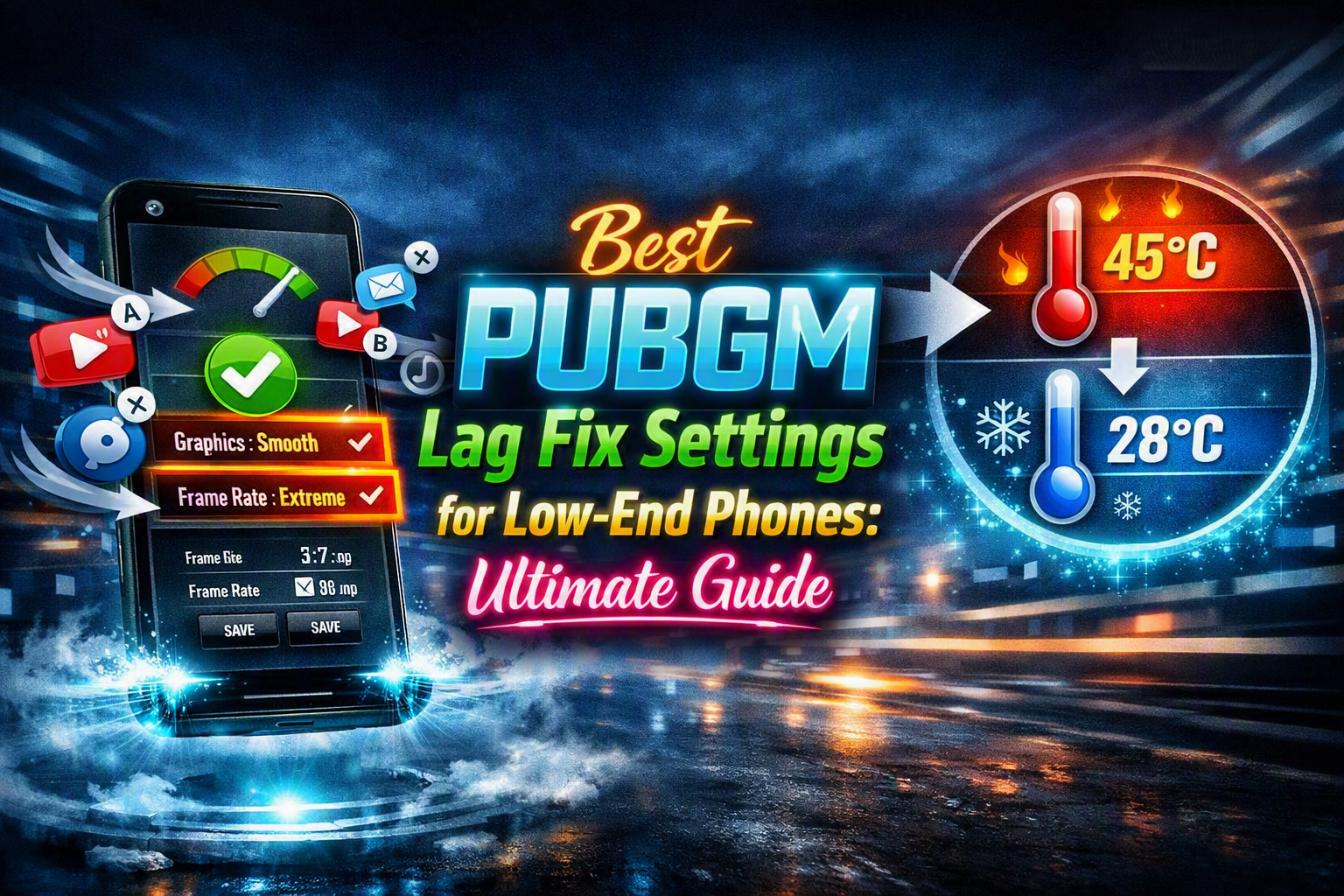
Do you hate it when your screen freezes during a close fight? You aim at the enemy, your phone lags, and suddenly you are dead. It is incredibly frustrating. It ruins your rank and lets your teammates down.
You do not need an expensive gaming phone to fix this. The problem is just your default settings. They are too heavy for your budget device. By using the best PUBGM lag fix settings for low-end phones, you can stop the lag completely.
Let’s fix your settings so you can play smoothly and win your matches with confidence!
1. The Core Graphics Settings (The Ultimate FPS Boosters)
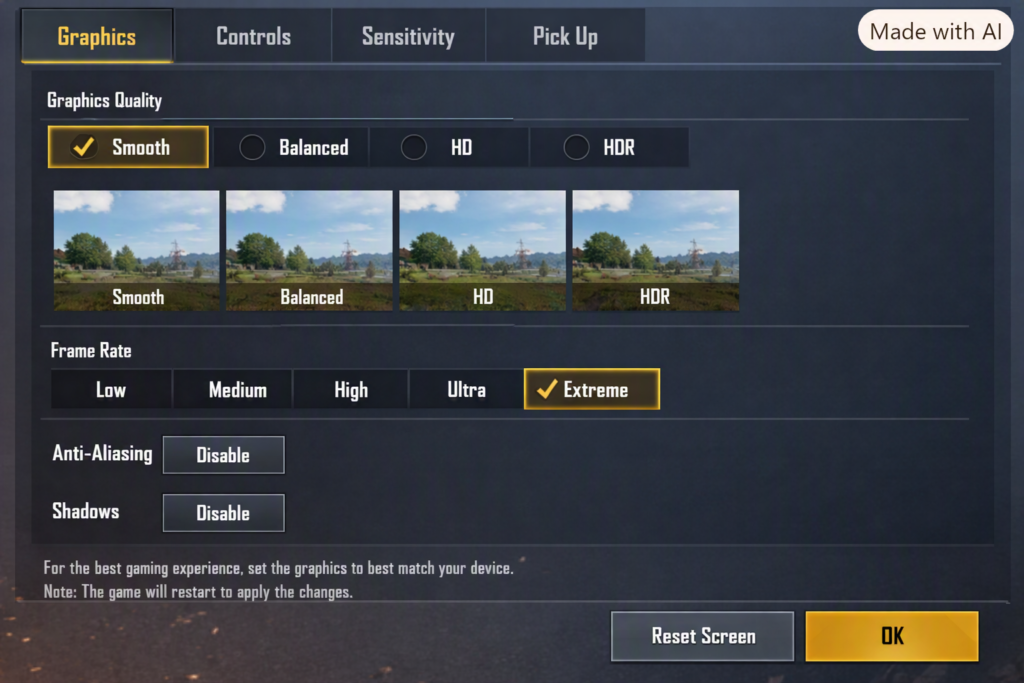
The game’s default graphics profile is the top cause of lag on budget devices. To keep your gameplay smooth, focus on performance instead of visuals. Go to Settings > Graphics & Audio > Graphics, then apply the following changes to reduce extra rendering load.
- Graphics: Smooth. Avoid Balanced, HD, or HDR. “Smooth” reduces rendering pressure on the GPU, yielding massive performance gains.
- Frame Rate: Select the highest option available on the device (e.g., Ultra or Extreme). Choosing higher settings lets the game run at a steady 40–60 FPS, which helps avoid stuttering during intense squad fights.
- Style: Classic or Colorful. These offer bright, clear character separation without using complex real-time lighting processing loops.
- Anti-Aliasing: Disable. It smooths out rough edges in graphics but uses a lot of processing power and can make low-end phones heat up quickly.
- Shadows: Disable. Shadows keep recalculating light effects whenever things move, which slows down gameplay and makes budget phones struggle to keep a steady frame rate.
- Auto-Adjust Graphics: Disable. If enabled, this background monitoring tool keeps running in the back and causes sudden lag spikes during gameplay.
Read More: Fortnite is better than PUBG?
2. Advanced Controls & Feature Optimization For PUBGM Lag fix Settings
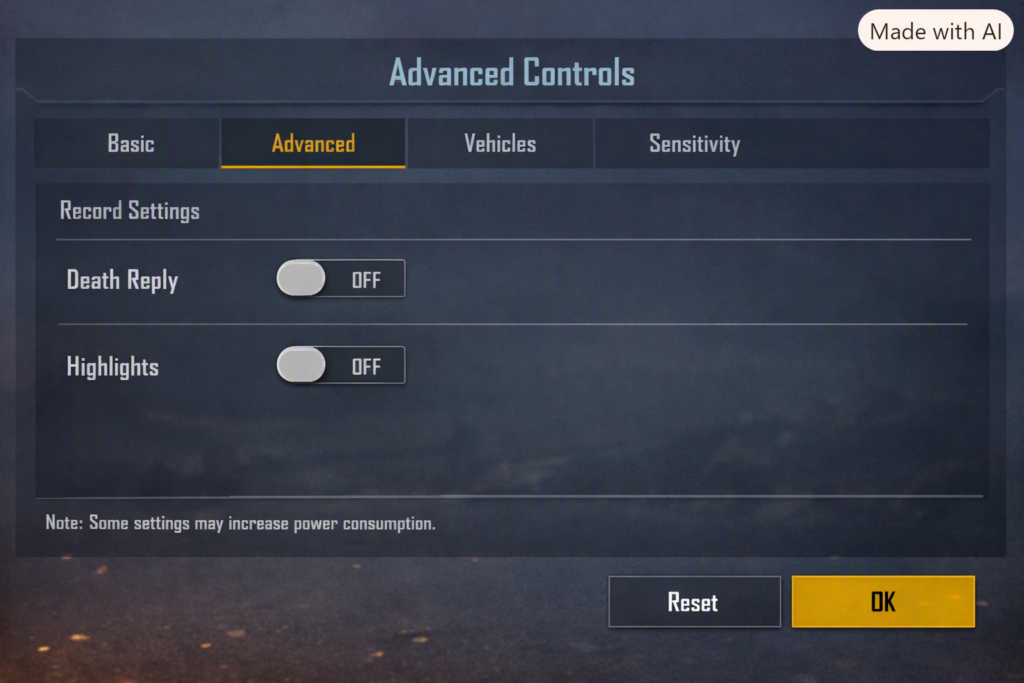
Many players keep extra game features turned on without realizing they use up processing power. Go to Settings > Advanced Controls and make these changes to improve performance:
- Death Reply: Disable. Recording and saving gameplay clips to show how a player died is one of the heaviest background tasks. Turning this off right away stops sudden drops in performance.
- Highlights: Disable. Similar to Death Replay, this feature automatically records clips of multi‑kills, which can cause small stutters during heavy fights.
- Sprint Sensitivity: Set to 85% – 100%. If your device’s touchscreen isn’t very responsive, increasing sprint sensitivity helps your character move faster and react better without any delay.
3. Audio & Resource Management
High-fidelity sound presets heavily tax a mobile device’s sound chip and memory registers. Under Settings > Audio:
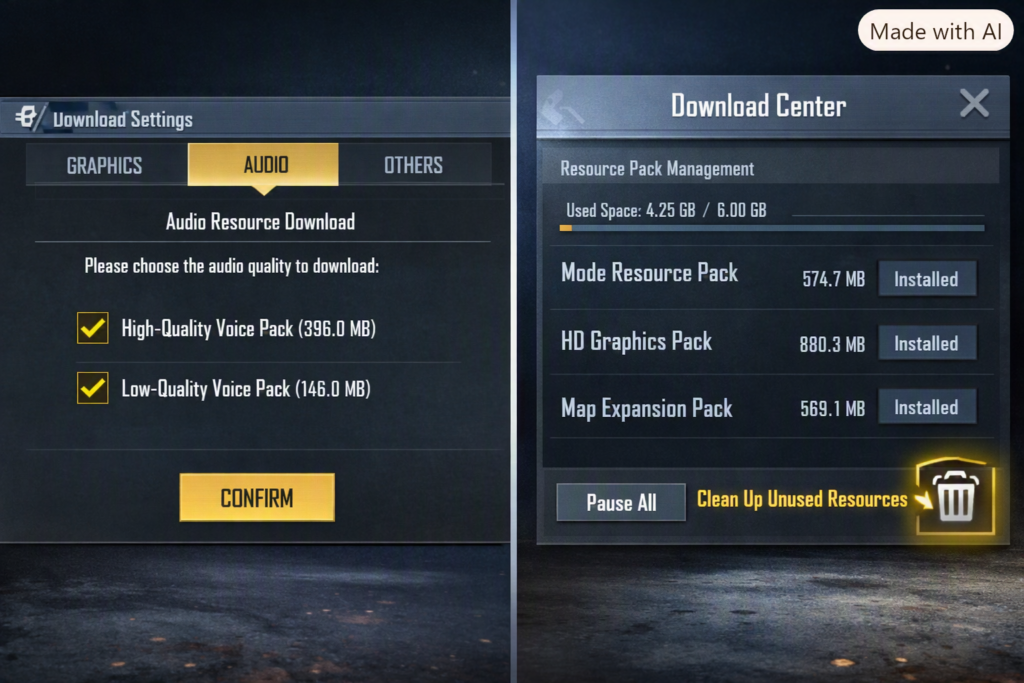
- Audio Quality: Low or High (Never choose Ultra). The Ultra audio pack requires extra processing power to decode sound spatialization. For a low-end phone, high or low sound qualities preserve system responsiveness.
- Download Management Details: From the main lobby, open the Download Center and pause or delete any extra resource packs you don’t need. Avoid downloading packs for weapon skins, maps you don’t play, or old voice files. Removing these frees up valuable storage space and keeps your device running faster.
4. System-Level Phone Optimizations
Even the most optimized in-game configuration will fail if the phone’s operating system is cluttered. Complete these critical system checks before launching the application:
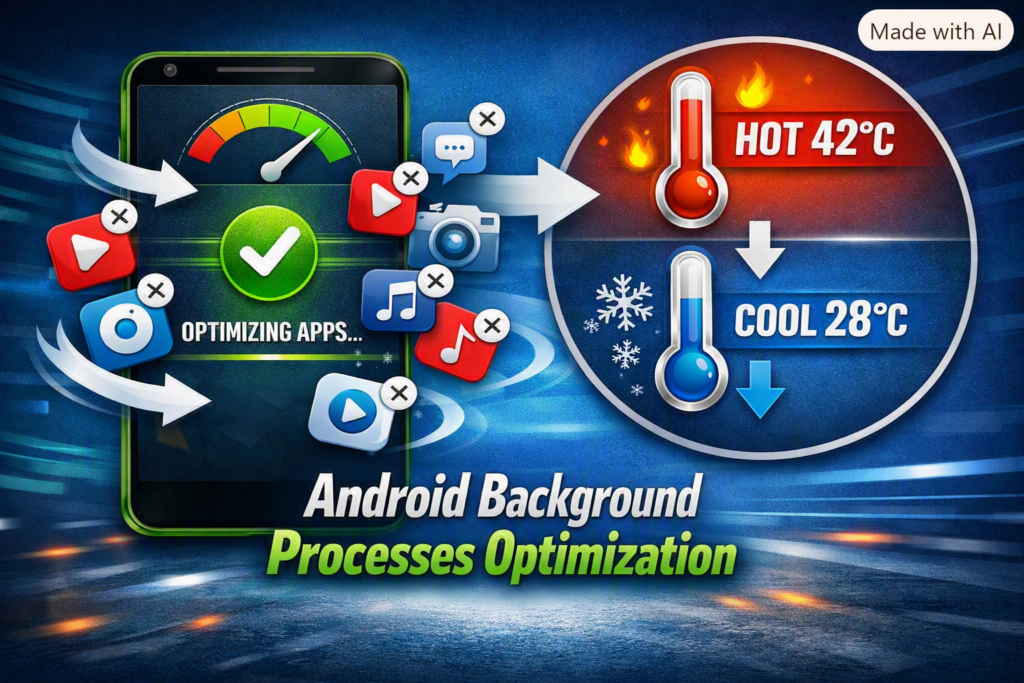
- Clear Background RAM: Force-close apps like WhatsApp, YouTube, or TikTok. These applications consume valuable memory that the game needs to load maps smoothly.
- Thermal Management: Never play while charging. Low-end processors automatically lower their speeds (thermal throttling) when they get hot, resulting in terrible frame drops. Remove the phone’s protective case during intense gaming sessions.
- Storage Maintenance: Make sure your device always has at least 10GB of free space. If storage drops below this, Android can’t create cache files properly, which leads to constant lag across the whole system.
5. Network Routing Optimization (Fixing Desync & Fake Ping)
You can have the smoothest 60 FPS graphics, but if your internet network drops data packets, you will still experience “teleporting” lag and bullets that fail to register. On low-end phones, the built-in Wi-Fi and mobile data chips struggle to handle heavy real-time data flow, leading to packet loss and server desync.
Apply these configurations to stabilize your data flow:
- Activate Network Debug Statistics: Go to Settings > Gameplay > Others and enable Network Debug Statistics. This adds a real-time monitor to your screen so you can immediately see if your spikes are caused by high hardware rendering loads or unstable packet jitter.
- Switch to Google or Cloudflare DNS: Default internet provider DNS routing often redirects your gaming data through cluttered channels. Go to your phone’s Settings > Connection & Sharing > Private DNS, select Private DNS Provider Hostname, and enter
dns.googleor1.1.1.1to establish a direct, cleaner route to gaming servers. - Deploy Safe Network Builders: Avoid using banned virtual private networks (VPNs) that get your account flagged. Instead, use official gaming boosters like Gear Up Booster before opening the app. These applications use dual-channel acceleration to combine your mobile data and Wi-Fi streams, which fills in dropped data packets and lowers your overall jitter.
Conclusion
Gaming should be fun, not frustrating. You should not have to fight your own phone just to enjoy a match with friends. These quick steps will give your budget phone a massive break.
Try these settings right now, jump into a match, and feel how smooth your game becomes!
Leave a comment below: Did this fix your lag? Let us know if your game feels much faster now!